One of the most common asks I get from customers is to package and deploy certain applications to Microsoft Windows devices using Microsoft Intune. We will be focusing on the Windows app (Win32) option in this blog. We will be using 7-Zip as an example here, but any Win32 application you package will follow these steps:
- Preparation (done on device)
- App packaging (done on device)
- App upload, install, and uninstall (Intune)
- App requirements and detection rules (Intune)
- Dependencies and supersedence (Intune)
- Assignments (Intune)
- Confirmation of deployment (Intune and device)
Preparation
Create a new folder in your preferred location and move your .msi or .exe file to this folder. It is important that the only thing is this folder is the application itself and any related files required for installation or operation of the app. This is becuase when you go to use the Intune WinApp Util, anything that is in the source folder will be packaged into the .intunewin file that we will upload to Intune. We don’t want anything extra and unnecessary being packaged in our .intunewin file as this can slow the installation process down or even cause it to fail.
Next, determine the silent install and uninstall commands for the app. It is imperative that the application be able to be installed without user interaction. In almost every case, if you try to push an application from Intune without a silent install parameter, it will timeout and fail.
For common apps, a quick Google search will give you the silent switches you need to install your app. If it’s an app I am not familiar with or haven’t seen before, I will usually test the install and uninstall commands on my test computer to confirm they work properly. This is done simply by opening a PowerShell window as admin and running the commands I think should work. For some uncommon or proprietary applications, you may need to reach out to the application developer in order to get the correct silent install commands, especially if the install command requires a switch that contains a license number.
Since I am using the 7-Zip installer in .exe format as our example, here are the silent install and uninstall commands I will be using:
- Install: “7z2301-x64.exe” /S
- Uninstall: “C:\Program Files\7-Zip\Uninstall.exe” /S
If I were using the .msi version of the 7-Zip installer, it would look like something this:
- Install: msiexec /i “7z2301-x64.msi” /qn
- Uninstall: msiexec /x “{23170F69-40C1-2702-2201-000001000000}” /qn
Let’s save these commands for later and get into the app packaging.
App Packaging
Any Win32 app packaged in Intune must be wrapped up in a .Intunewin file using the Intune WinApp Util. Download that here: GitHub – microsoft/Microsoft-Win32-Content-Prep-Tool and open it.
Select the source folder we created earlier, enter the name of the .exe or .msi installer file, and select the output folder (I always use the same folder as the source folder):
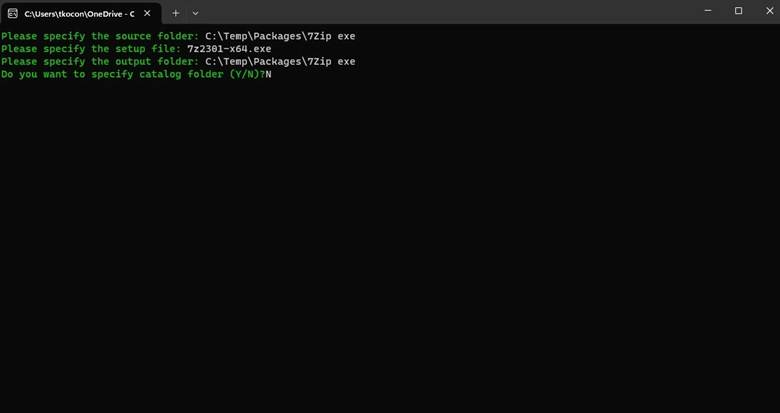
After entering in this information, the app will package and you will see the .intunewin file appear in your folder.
App Upload, Install, and Uninstall
Next, open up the Intune portal at https://intune.microsoft.com and go to Apps > All Apps > +Add and select Windows app (Win32)
Enter the required app information (name, description, publisher) and any optional information you want such as a logo or a privacy URL. Note that any of the attributes under app information won’t be visible to end users unless you make the app available to users via the company portal which will touch on later.
Under Program, enter in the install and uninstall commands you saved earlier:
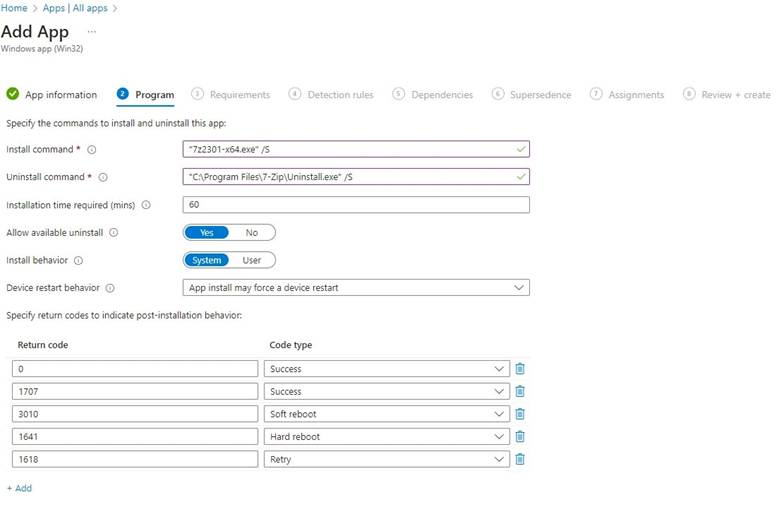
I almost always leave the remaining options as is, but lets go through them:
- Installation Time: How long Intune will wait for the app to install before timeout.
- Allow available uninstall: Allow users to remove the app via the company portal. This option only matters if you select the install type as available instead of required.
- Install behavior: Leave as system in most cases, but some apps may need to be installed as user if they don’t work as system.
- Device restart behavior: I always leave this as “App install may force a device restart”. Due to my testing with this app, I know my uninstall and install commands specify that the app won’t restart during the installation, so this setting is a non-factor.
App requirements and detection rules
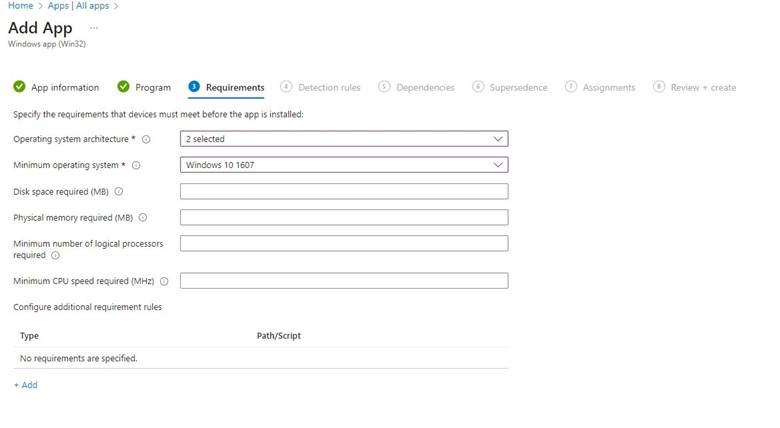
Next is the requirements page and I’ll be honest, I rarely care what these are set to. Most of the apps I package for customers will work just fine on 32 bit or 64 bit operating systems, any OS version, and don’t require any specific disk space, RAM, processors, or CPU speed. Obviously if your app vendor has given you a list of hardware requirements, enter them here.
Detection rules are next and are the most important piece to get right beside the silent install and uninstall commands. These rules determine what Intune checks to confirm your app is installed. You can choose a custom compliance script, which I cover (or will cover) in another blog post, but for this app we will choose “Manually configure detection rules” and click + Add.
Now, we get to choose what rule type we want to use:
- MSI: Checks the registry for the applicable MSI product code. Can also check the version as well.
- File: Checks a specific file or folder to determine if it exists, when it was modified or created, the size of the file, or the file version.
- Registry: Checks a specific registry location to determine if a specified key exists, does not exists, or compare it to a string, version, or integer.
For this example, I will use a file rule:
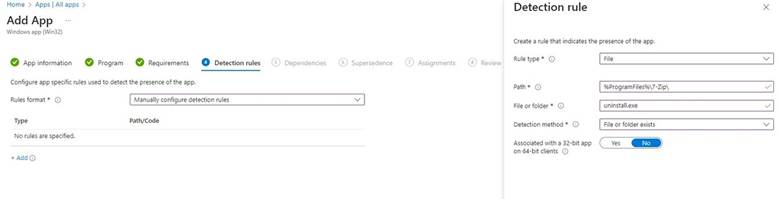
It is important that your detection rule looks for an indicator of a successful install. I have seen it many times in customers environments where the detection rule is something like “Check if C:\program files\7-Zip exists”. This could mean that the app is installed, or it could be a remnant from an old install. I like to be as specific as possible. In this case, I am checking to see if the uninstall.exe file exists in the 7-Zip folder under program files.
Dependencies and Supersedence
If you have any applications that need to be installed before this app you are packaging can be installed, add them under dependencies.
If you would like to remove a previous application or version of the same application, add them under supersedence. You can also automatically uninstall the previous version of the application in the supersedence options as well.
For any apps select for dependencies or supersedence, they must be packaged in Intune. I will leave both of these empty for this app.
Assignments
Lets go over our options for assigning our app and what it means:
- Required: Installs the application automatically using the install string provided.
- Available: Makes the app available for users to install (or uninstall you set that option) via the company portal.
- Uninstall: Uninstalls the application automatically using the install string provided.
These are straightforward, but it is worth noting that removing a device from Intune or removing the device/user from a group that is assigned the Win32 app will not remove the Win32 app from their device. Only adding them to the Uninstall assignments section will uninstall the Win32 app.
For this example, I will choose Required and select a dynamic device group I previously created that contains my Windows device:
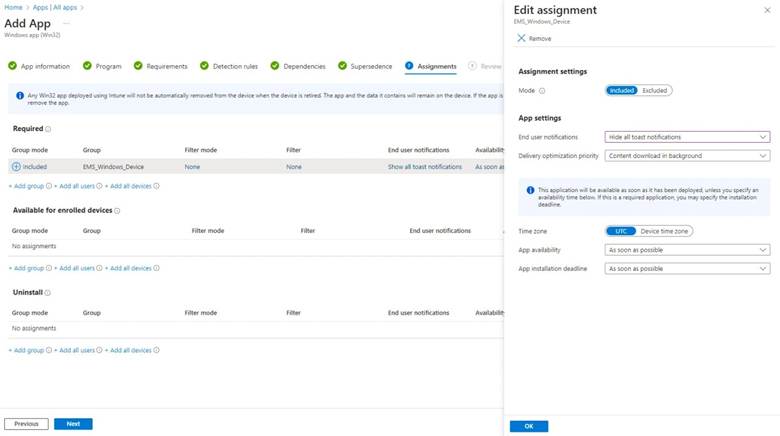
For this app, I don’t want my end users to be notified when it installs, so I’ve opted to hide all toast notifications.
The other settings I usually leave alone. I haven’t run into a scenario where I don’t want the app to be pushed as soon as possible, and I like having the app download in the background to minimize end user disruption.
Conclusion
Packaging Win32 Apps is an integral part of Intune device management. With proper preparation and testing before the app is uploaded to Intune, you can avoid having to delete and re-package the same app multiple times. I hope I was able to answer general questions you may have when packaging your first couple of apps.
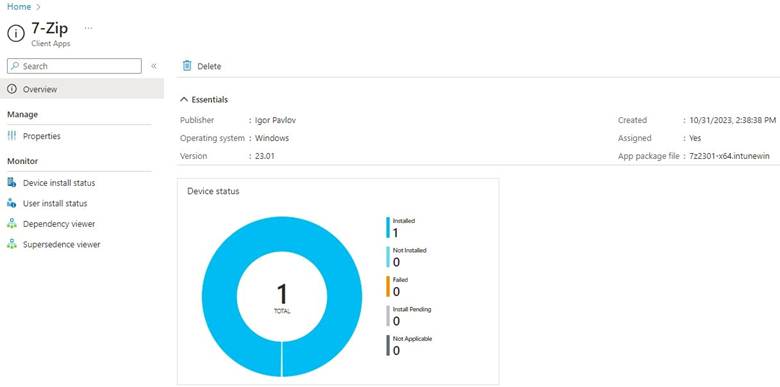
Just to show that the settings I listed above work, here is my 7-Zip test app showing as deployed to my test device after a couple of minutes: