
Overview
I am cheating a little bit calling this blog an Intune guide. Azure AD Dynamic groups are actually created and managed in Entra ID (f.k.a. Azure AD), but they play an integral part to the operation of Intune. Furthermore, I often see customers who have overlooked or ignored the importance of properly staging these groups.
No matter how many apps you package or configuration profiles you create, they don’t mean anything until they are assigned to a group.
This group assignment is important for automating device management. Who wants to have to manually assign a device to a group every time its added to Intune?
You can save yourself a lot of headache and time by properly creating and managing your dynamic groups.
Creating Dynamic Device Groups
Dynamic groups work by filtering membership using a specific attribute or set of attributes, we call these azure ad dynamic membership rules. For example, the dynamic membership rule could mandate that the devices operating system is Windows, or the model is Surface Pro 2, or both, in order to be added to the group.
Microsoft has an excellent Learn article covering the attributes you can use for dynamic device groups: Rules for dynamically populated groups membership | Microsoft Learn
As an example, lets create a dynamic device group where the operating system type is Windows, the MDM management tool is Intune, and the manufacturer of the device is Lenovo. The dynamic membership rule would look like this:
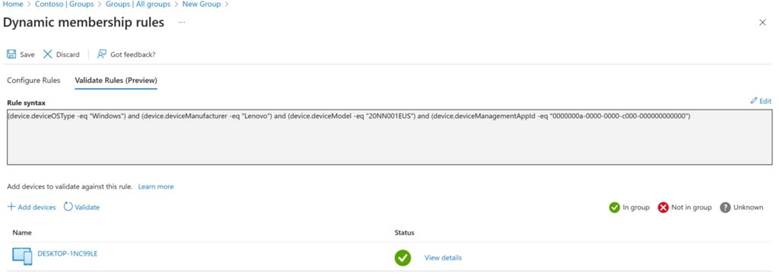
Flip over to the validate rules tab and add a device or devices to verify your rules are working. For example, I know my Lenovo test device should be in this group, and the Azure rule validation confirms it will:
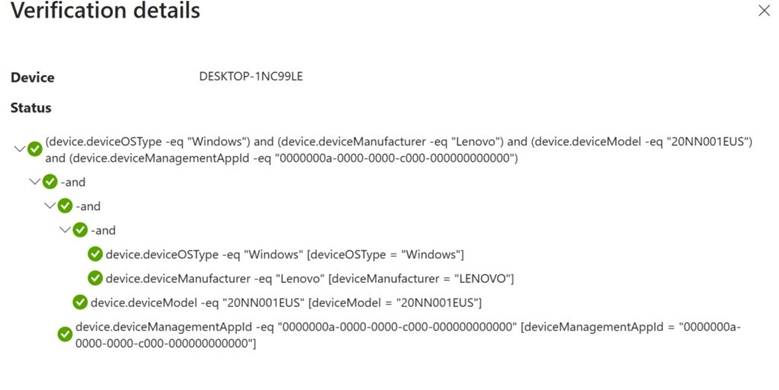
After this dynamic group is created, I can then assign multiple configuration profiles to it Intune. Then, when a new Lenovo device enrolls in Intune, it automatically gets all of these configuration profiles assigned to it.
Dynamic Device Groups and Autopilot
One of the most important uses for dynamic groups is Autopilot. Once your devices are enrolled in the Autopilot service, the best way to automate Autopilot device profile assignment is to use dynamic device groups. Otherwise, you have to manually assign a profile to each device or use the same default profile for all devices.
Unlike regular device groups, there is a limited selection of attributes that Autopilot device registrations contain. We want to make sure that any devices in our group are actually registered in the Autopilot service, so we look for an attribute called “ztdid” which stands for zero-touch device ID. Only devices added to the autopilot service have a ztdid assigned to them.
For example, if we want to create a group that contains all autopilot devices, we would use this dynamic device membership rule:
(device.devicePhysicalIDs -any (_ -contains “[ZTDID]”))
You can also separate autopilot devices by tagging them in Intune and then creating groups based on the tag:
(device.devicePhysicalIds -any (_ -eq “[OrderID]:AzureAdOnly”))
Hopefully this helped to demystify dynamic device groups, as well as why they are important and how they are used in conjunction with Autopilot.