
If your organization uses the Microsoft 365 suite of products, Mobile Application Management should be high on your list of security requirements. For example, a 2022 report published by HP states that 90% of employees report accessing company data from a personal device in order to do their jobs. BYOD allows user’s some flexibility with where and when they work, and companies benefit by not having to provide another mobile device to their end users. The trade-off is simple; users can do their jobs without sitting at a desk all day and companies save money when procuring devices.
As great as BYOD can be, the obvious issue is security. If I can access company resources from any device, how can my organization keep access to their data secure? First, let’s cover Windows/Mac devices. It is rather simple for these devices, in my opinion, don’t allow it. The controls available for Windows/Mac devices (at least from Microsoft products) are not secure enough to allow users to access data from an unmanaged Windows or Mac device. If you’re a security administrator, make your life easier and just don’t allow access from these devices unless they are managed by an MDM.
Android and iOS devices are a different story. Intune offers a set of policies through MAM that, when combined with conditional access, can protect Android/iOS devices so data can’t be exfiltrated out of the corporate environment. With a properly configured MAM policy, we no longer have to worry about users having a passcode on their personal phones, or if their kids have access to it, or whatever the case may be. We can still control the movement of any data they access.
MAM works by containerizing the data inside of certain applications. The full list of supported apps can be found here. Once the user signs into to one of these apps with their corporate credentials, the restrictions take place. If they sign out, the restrictions are removed. All we have to do to configure the restrictions is create and deploy the MAM policy, and ensure users have the proper broker app on their devices. We’ll start with stepping through the creation of an application protection policy, then a conditional access policy, and lastly go over the user experience when the policy is deployed.
Creating an Application Protection Policy
Basics
First, open Microsoft Intune and go the Apps section, under the Manage Apps category, select Protection and then select Create. You can select either iOS or Android and follow along with this guide as they are very similar. For this example, I will select an iOS policy:
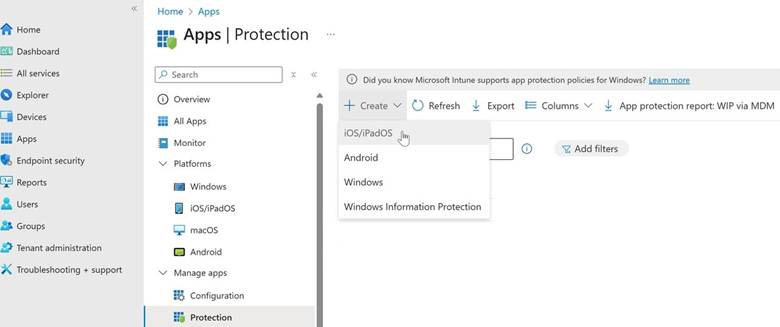
After giving the policy a name and description, we can select which Apps we want to target with our policy. I always select All Apps because we might as well cast the widest net possible.
If you select All Microsoft Apps or Core Microsoft Apps, you may have to edit your MAM policy later on if you want to control something like Zoom or Egnyte.
Data Protection Settings
This is where we can actually control how our data moves within the managed applications we selected above. Whenever I create a MAM policy, I want to stop corporate data from leaving the applications that I can control. So, I configure the following settings to make sure that when a user signs into a managed app with their corporate Microsoft account, that data stays in that app only:
- Backup Org Data to iTunes and iCloud backups: Block
- Send org data to other apps: Policy managed apps
- Save copies of org data: Block
- Allow user to save copies to selected services: OneDrive, SharePoint
- Restrict cut, copy, paste: Policy managed apps with paste in
- Cut and copy character limit: 0
- Encrypt org data: require
- Sync policy managed app data with native apps or add-ins: block
- Printing org data: Block
- Screen capture: block
Access Requirements
Along with protecting the data, we can also control access into the applications. I usually require a PIN for access and block simple PIN but don’t require a PIN reset or work or school account credentials for access.
This way, users will be required to setup a PIN the first time they access the managed app (they can use biometrics after the PIN is setup), but they won’t have to change the PIN or login with their Microsoft account every time.
Conditional Launch
We can also set some sign-in security requirements. I set the following settings:
- Max PIN attempts | 5 | Reset PIN
- Offline Grace Period | 1440 | Block access (minutes)
- Offline Grace Period | 30 | Wipe data (days)
- Jailbroken/rooted devices (Block access)
Assignments
Finally, we can assign this app protection policy to a user group of our choosing. Remember, MAM controls the data level, not the device, so we should always assign it to a user-based group.
Conditional Access
Now that we have our MAM policy created and deployed, we can ensure that our data will be protected when a user signs into a managed app with their Microsoft account. However, what is stopping them from signing into the GMail app or native mail application with their Microsoft account and bypassing all the restrictions we just put in place? This is where conditional access comes in.
To be sure that users are ONLY using MAM controlled applications on their BYOD devices, we can create a conditional access policy with the following settings:
Assignments | Users | All users
Target Resources | All resources
Conditions | Device platform | Android and iOS
Grant | Require app protection policy
If you have MDM managed Android or iOS devices and you don’t want MAM to apply to them, you can add in a device filter to this policy.
End User Experience
Now that all this is setup, what does it look like for our end users?
First, they have to have the broker app on their device; Authenticator app on iOS devices, Company Portal app on Android devices (make sure they don’t sign in!!).
After the policies are applied, nothing will change until they open a MAM managed application for the first time. When they do, the app will say something along the lines of “Your company is managing this application, the app will now restart”
After the app opens again, with our settings above, they will be required to set up a PIN for access. They only need to set this PIN in one app and it will transfer to the other apps as well. Once the PIN is set, they can use biometrics and even reset the PIN if they forget it by signing in with their username/password.
After that, they are off and running. They can use their apps as normal with the restrictions we defined.